AdsPower keeps profiles on its side and exposes them through its Local API — a local server running on the same computer. inoBrowser connects to it directly and pulls the profiles together with their proxies and cookies. There is nothing to export to files.
What carries over
The fingerprint is deliberately left behind. In inoBrowser it is generated once from a real-world device distribution, for your computer’s OS, and never changes after that — on every launch it goes to the engine as is. Time zone, language, geolocation and WebRTC follow the proxy IP.
To a website, a migrated profile is a new device with the same cookies and the same proxy.
Before you start
- AdsPower is running on this same computer with the Local API enabled.
- You have the Local API port —
50325by default — and the API key from the AdsPower Local API settings. - Your plan has room: an import can’t go over your profile limit. Free includes 3 profiles; see Pricing for plan limits.
Check that the Local API responds
Run this in a terminal — if the response has "code": 0, you’re good to go.
curl http://127.0.0.1:50325/status { "code": 0, "msg": "success" }
Step by step
- 1
Open the import
In Profiles, click Import in the top right and switch to the From another browser tab.
- 2
Connect AdsPower
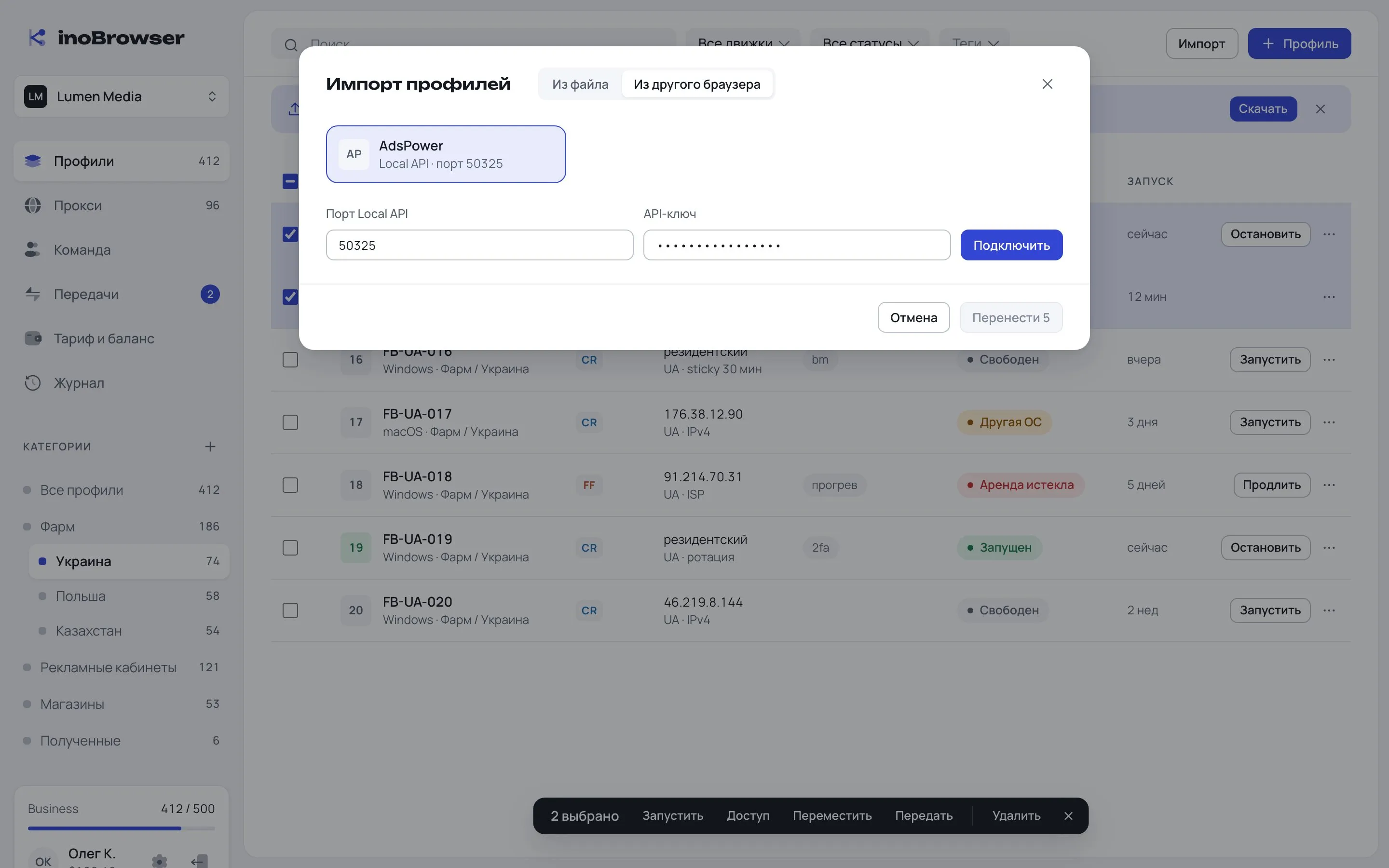
Pick the AdsPower card, enter the Local API port and API key, and click Connect.
- 3
Select profiles
Once connected, you’ll see the list of AdsPower profiles with their OS, proxy, cookie count and tags. Uncheck the ones you don’t need.
- 4
Choose a category
By default, profiles land in Received. You can pick any branch of the tree right away, for example Farm / Ukraine.
- 5
Move them
Click Transfer. When the import finishes you’ll see Imported — the profiles are in the chosen category with freshly generated fingerprints.
If the Local API isn’t available
If AdsPower runs on another computer, move the profiles with a file instead. In the import window, open the From file tab: download the CSV template and fill it in, or upload your own CSV or XLSX table, then add cookies — JSON, Netscape or a zip archive.
Before importing, inoBrowser shows a row-by-row preview. Rows with errors are flagged — for example, a missing name or Linux as the OS — and are skipped. Everything else is imported right away.
Checking the result
Open the profile. The start page opens as the first tab: exit IP, proxy geo and provider, plus checks for time zone, language, WebRTC, geolocation and the computer’s OS.
- The IP and country match the proxy the profile had in AdsPower.
- Every check on the start page is green.
- Sites open without signing in again — the cookies are in place.
To dig deeper, use the detectors: BrowserScan, Pixelscan, BrowserLeaks, CreepJS, Fingerprint.com and IP2Location are linked from the start page. How to read their results is covered in How to check a fingerprint on detectors.
FAQ
Can I bring over the AdsPower fingerprint?
No. In inoBrowser the fingerprint is created from scratch for your computer’s OS and passes a consistency check. A fingerprint from another tool can’t guarantee that.
What happens to my profiles in AdsPower?
The import only reads them. Your AdsPower profiles stay exactly as they were.
What if a profile was set up for a different OS?
A migrated profile gets the OS of the computer you run the import on. If you later open it on a computer with a different OS, inoBrowser warns you and launches the profile only after you confirm.